Key Takeaways
- QuickBooks bank rules automate categorization of recurring transactions, reducing manual work for subscriptions and payments.
- Automation does not replace the need for bookkeeping judgment; business owners must review rules regularly.
- Common issues arise from overly broad rules that misclassify transactions, so specificity is crucial.
- Incorrect rules can distort financial reports, affecting profit and loss statements as well as tax records.
- Best practices include using clear rule names, reviewing bank feeds, and ensuring accurate categories for clean books.
QuickBooks bank rules can make bookkeeping faster, especially for recurring transactions that show up the same way each month. They can help organize software subscriptions, rent payments, merchant fees, loan payments, utilities, and other repeated activity.
But automation does not replace bookkeeping judgment.
A rule can suggest a category, vendor, class, location, or memo. It can also apply those details consistently. What it cannot do is understand the full business reason behind every transaction. That is why QuickBooks rules work best when business owners use them as a helpful tool, not a complete bookkeeping system.
What QuickBooks Bank Rules Do
QuickBooks bank rules help categorize transactions that come through connected bank and credit card feeds. Intuit explains that bank rules look for transactions based on details such as description, amount, or bank text, then apply instructions that you choose. Those instructions may include a category, payee, class, location, or other transaction details, depending on your QuickBooks setup. (QuickBooks)
For example, a business owner might create a rule that says:
When QuickBooks sees a monthly payment to the internet provider, categorize it to utilities.
When QuickBooks sees a recurring bookkeeping software charge, categorize it to software subscriptions.
When QuickBooks sees a payment processor fee, categorize it to merchant fees.
This can reduce repetitive manual work. QuickBooks also provides a review process for bank transactions, and Intuit’s guidance tells users to review and categorize downloaded transactions before adding them to the books. (QuickBooks)
That review step matters. A bank feed brings transactions into QuickBooks, but the business owner or bookkeeper still needs to decide whether the coding makes sense.
How Rules Can Speed Up Recurring Transaction Coding
Rules work especially well for transactions that meet three conditions:
They happen regularly.
They have a predictable vendor or bank description.
They usually belong in the same category.
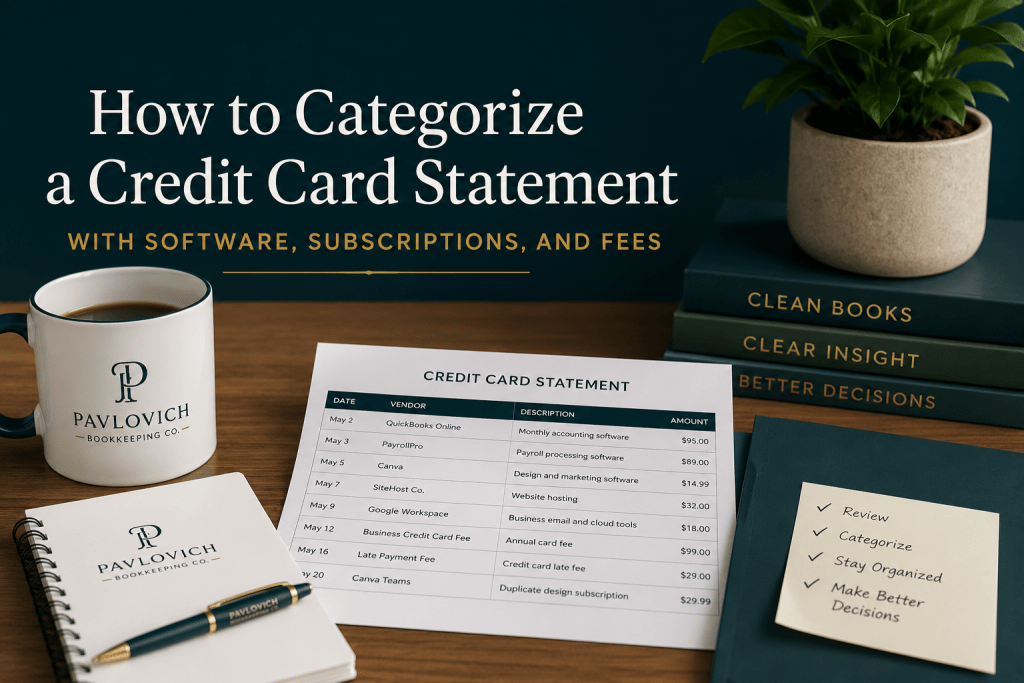
For example, a monthly Zoom, Adobe, Google Workspace, or QuickBooks subscription may follow a consistent pattern. A rule can help QuickBooks recognize the charge and apply the same expense category each time.
Rules can also help with recurring deposits. A business that receives payments from the same platform every week may create a rule to help identify those deposits. But income rules need special care because deposits can include gross sales, processing fees, refunds, tips, sales tax, transfers, or loan proceeds. A bank deposit does not always equal revenue.
The U.S. Small Business Administration notes that good financial management includes understanding bookkeeping, cash flow, and business records. It also encourages small business owners to consider help from a CPA, bookkeeper, or online service when needed. (SBA) QuickBooks rules can support that system, but they do not replace the need to understand what the transaction represents.
Common Problems Caused by Overly Broad Rules
The most common issue with QuickBooks rules is not that they exist. The problem usually comes from rules that are too broad.
For example, a rule that categorizes every transaction containing the word “Amazon” to office supplies may create problems. One Amazon purchase might be printer paper. Another might be equipment. Another might be a personal purchase accidentally made on the business card. Another might include multiple items that belong in different categories.
A broad rule may also misclassify:
Loan payments as general expenses
Transfers as income
Owner draws as business expenses
Customer refunds as ordinary expenses
Meals, travel, and supplies under one general category
Personal charges as business deductions
Payments to contractors without proper vendor detail
QuickBooks rules can also behave differently when they come from another QuickBooks file or version. Intuit’s troubleshooting guidance notes that migrated rules may change in certain ways, including how conditions carry over into QuickBooks Online. (QuickBooks) That is another reason to review rules after a setup change, migration, or cleanup project.
A rule should help QuickBooks make a better suggestion. It should not blindly move transactions into the books without review.
Why Business Owners Should Review Rules Regularly
Business activity changes. Vendors change. Payment descriptions change. Business owners add new services, move subscriptions, open new bank accounts, hire contractors, buy equipment, and change how they collect payments.
A rule that made sense last year may not make sense now.
Business owners should review QuickBooks rules regularly to make sure they still match the business. That review should include:
Checking rules for broad words like “payment,” “transfer,” “deposit,” “Amazon,” or “Square”
Confirming that each rule applies to the correct bank or credit card account
Reviewing whether the rule uses the right category, vendor, class, location, or project
Looking for duplicate rules that conflict with each other
Turning off rules that no longer apply
Reviewing auto-add rules carefully before using them
Rules that automatically add transactions can save time, but they also increase risk. If the rule applies incorrectly, the mistake may enter the books before anyone notices.
QuickBooks automation can help with speed. Careful review protects accuracy.
How Incorrect Rules Affect Reports and Tax-Time Records
Incorrect rules can quietly distort financial reports.
If QuickBooks posts software subscriptions to office supplies, the total expenses may still look reasonable, but the detail will not tell the right story. If loan payments go fully to expense instead of splitting principal and interest properly, profit may look lower than it really is. If transfers show up as income, revenue may look inflated.
These errors affect reports such as:
Profit and Loss
Cash flow reports
Expenses by vendor
Income by customer
Project or class reports
Tax-time reports for the CPA or tax preparer
The IRS says small business owners should use a recordkeeping system that clearly shows income and expenses. It also says records should support the income, deductions, and credits reported on a tax return. (IRS) The IRS also explains that business records should include summaries of business transactions and supporting documents for purchases, sales, payroll, and other activity. (IRS)
That matters because QuickBooks categories are not just labels. They become part of the financial record that helps the owner review the business and prepare information for the CPA or tax preparer.
A bad rule can repeat the same mistake every month. By tax time, that one small automation issue may create a long cleanup list.
Best Practices for Keeping Automation Accurate
QuickBooks rules work best when you keep them specific, limited, and easy to review.
Start with recurring transactions that rarely change. Software subscriptions, insurance payments, rent, phone service, internet service, and bank fees often make good rule candidates.
Avoid broad rules for vendors that sell many types of items. Amazon, Walmart, Costco, Target, and similar vendors often need manual review because purchases may belong in different categories.
Use clear rule names. A rule called “Adobe monthly software subscription” gives more useful information than a rule called “Adobe.”
Review the bank feed before adding transactions. Intuit’s transaction guidance emphasizes reviewing, categorizing, matching, and adding bank transactions carefully. (QuickBooks)
Be cautious with deposits. Review whether deposits represent customer income, owner contributions, loan proceeds, transfers, refunds, or payment processor batches.
Use vendor names consistently. Clean vendor details help reports make sense and make year-end review easier.
Check rules during monthly bookkeeping. A monthly close process should include reviewing uncategorized transactions, bank feed activity, reconciliations, and reports before relying on the numbers.
Ask for help before changing a large rule list. A bookkeeper can help identify which rules make sense, which ones cause confusion, and which recurring transactions still need human review.
Automation Helps Most When the Books Stay Clean
QuickBooks rules can save time. They can reduce repetitive coding and make monthly bookkeeping more efficient. But rules need thoughtful setup and regular review.
Automation works best when a person still checks the business purpose behind the transaction.
Clean books depend on accurate categories, reconciled accounts, organized records, and consistent review. QuickBooks rules can support that process, but they cannot replace it.
Need help reviewing your QuickBooks setup, bank rules, or monthly bookkeeping process? Schedule a Consultation with Pavlovich Bookkeeping Co. and get your books organized before small automation mistakes turn into larger reporting problems.