
Key Takeaways
- Leaving QuickBooks requires careful planning to preserve your financial history and ensure accurate records.
- Identify the reasons for leaving QuickBooks; switching software won’t solve every bookkeeping issue.
- Create a transition plan that outlines the new software, key dates, and what records need to be transferred.
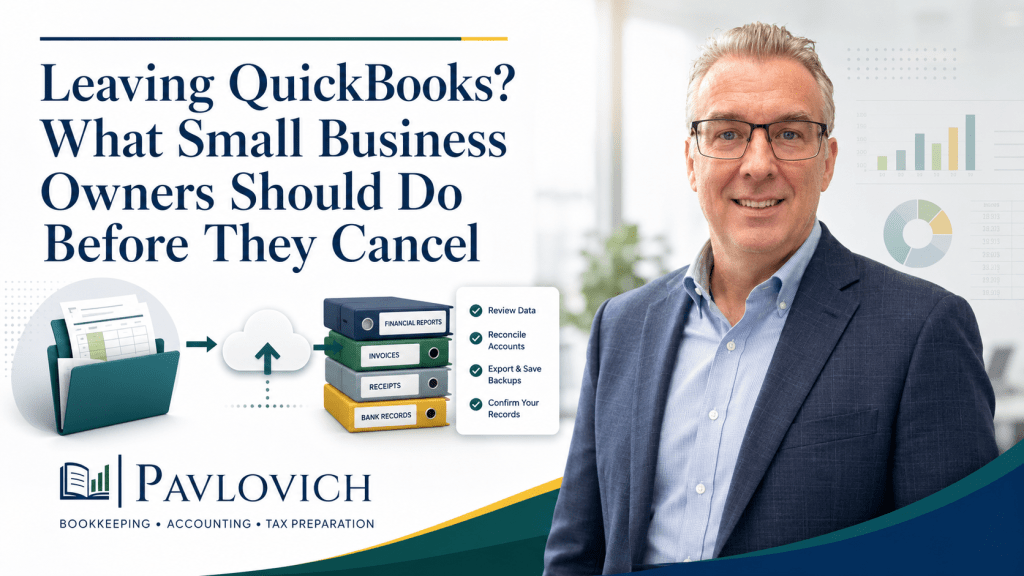
- Thoroughly update and reconcile your books, save essential reports, and export supporting information before cancellation.
- Consider seeking professional help if your records are complex or if you’re unsure about the transition process.
Leaving QuickBooks may seem as simple as exporting a few files and canceling the subscription. However, your bookkeeping system contains the financial history that supports your reports, tax returns, customer balances, vendor records, and business decisions.
Canceling too early can make it harder to find old transactions, confirm account balances, or answer questions from a tax preparer. Before you leave, create a clear plan for reviewing, preserving, and transferring your financial information.
Start by Understanding Why You Want to Leave QuickBooks
Before changing software, identify the problem you want the change to solve.
Some business owners consider leaving QuickBooks because the subscription costs more than they expected. Others feel frustrated by bank feeds, transaction categories, reports, or features they do not understand.
Your reason matters because switching software will not fix every bookkeeping problem.
For example, a different accounting platform will not automatically correct:
- Transactions assigned to the wrong categories
- Duplicate income or expenses
- Unreconciled bank and credit card accounts
- Personal purchases recorded as business expenses
- Old invoices that should have been closed
- Incorrect loan or credit card balances
- A disorganized chart of accounts
- Missing documentation
In those situations, the business may need bookkeeping cleanup, better monthly procedures, or professional support rather than a new program.
On the other hand, leaving QuickBooks may make sense when the software no longer fits the business. Another system may work better with your industry, invoicing process, inventory needs, payment systems, reporting requirements, or daily workflow.
The goal is not to stay with QuickBooks at all costs. Instead, determine whether the software or the bookkeeping process has caused the problem.
Do Not Cancel QuickBooks Before You Have a Transition Plan
Treat cancellation as one of the final steps.
Your transition plan should identify:
- The software or recordkeeping system you will use next
- The date you will stop entering new activity in QuickBooks
- Who will transfer or recreate the records
- Which information must move to the new system
- Which reports and documents you need to preserve
- How you will verify the new balances
- When you can safely cancel the old subscription
Choose a cutoff date that creates a clean dividing line between the two systems. The last day of a month, quarter, or tax year often provides a more organized transition than changing systems in the middle of a reporting period.
However, the best date depends on your business activity. Payroll schedules, sales tax filings, inventory, outstanding invoices, vendor bills, and tax deadlines may affect the timing.
Avoid recording the same activity in two systems for an extended period. Duplicate entry creates confusion and increases the risk that the records will not match.
Bring Your Bookkeeping Up to Date First
Do not migrate unfinished books unless you have a specific plan for completing them after the move.
Ideally, you should update the records through the transition date before leaving QuickBooks. That means reviewing transactions, collecting missing information, and correcting known errors.
Start with these areas:
Review uncategorized transactions
Look for transactions assigned to accounts such as Uncategorized Income, Uncategorized Expense, Ask My Accountant, or another temporary category.
Each transaction should have enough information to explain what happened and why it belongs in the selected account.
Correct duplicate transactions
Bank feeds can create duplicates when users add activity that already exists in the books. Duplicate sales, expenses, transfers, and payments can make reports unreliable.
Review unusual balances and repeated amounts before transferring the data.
Clear old bank-feed items
Downloaded banking activity does not automatically become complete bookkeeping. Review the items still waiting in the bank feed and determine whether each one should be matched, added, excluded, or investigated.
Review customer and vendor balances
Check open invoices, customer credits, unpaid bills, vendor credits, and unapplied payments.
An old balance may represent a real amount due. It could also result from an incorrect entry, duplicate transaction, or payment that was never properly connected.
Examine the chart of accounts
Your chart of accounts controls how QuickBooks organizes financial activity. Remove unnecessary duplication and identify accounts that no longer serve a clear purpose.
Do not delete or merge accounts without understanding how the change will affect previous transactions and reports.
Reconcile Every Bank and Credit Card Account
Reconciliation means comparing the transactions in QuickBooks with the financial institution’s statements. This process helps confirm that the beginning balance, activity, and ending balance agree.
Complete the reconciliations through your transition date whenever possible.
Reconcile:
- Business checking accounts
- Business savings accounts
- Credit cards
- Lines of credit
- Payment clearing accounts when applicable
- Other financial accounts tracked in the books
A bank-feed balance does not replace reconciliation. The feed may show recently downloaded activity, while the QuickBooks balance reflects transactions entered, matched, excluded, duplicated, or deleted inside the accounting records.
When the reconciliations do not agree, investigate the difference before leaving QuickBooks. Otherwise, the same unexplained balance may follow you into the next system.
Save the Financial Reports You May Need Later
Your reports provide a financial summary of the business at a particular point in time. Save final reports after you update and reconcile the books.
At a minimum, consider preserving:
- Profit and Loss
- Balance Sheet
- Statement of Cash Flows
- Trial Balance
- General Ledger
- Transaction Detail by Account
- Accounts Receivable Aging
- Accounts Payable Aging
- Sales reports
- Expense reports
- Customer balance reports
- Vendor balance reports
- Payroll reports, when applicable
- Sales tax reports, when applicable
- Reconciliation reports
Run reports for the current year and previous years that remain relevant to your tax, lending, insurance, or business needs.
Pay attention to the reporting method and date range. A cash-basis report can produce different totals than an accrual-basis report. Save files with clear names so you can tell what each report includes.
For example:
2026-profit-and-loss-accrual-final.pdf
Intuit currently allows QuickBooks Online users to export reports in formats such as Excel, CSV, or PDF, depending on the report and export method. Its broader export tool can also collect selected reports and lists into an Excel-based download. (QuickBooks)
Export More Than the Profit and Loss Statement
A Profit and Loss statement does not preserve your entire bookkeeping history.
It shows income and expenses for a selected period, but it does not contain every detail you may need later. Therefore, preserve both financial summaries and supporting records.
Depending on your business, you may need to export or save:
- Customer lists
- Vendor lists
- Product and service lists
- Chart of accounts
- Invoices
- Bills
- Estimates
- Purchase orders
- Customer statements
- Transaction details
- Journal entries
- Attachments
- Recurring transaction information
- Fixed-asset details
- Loan information
- Payroll records
- Sales tax information
Not every type of information exports in the same way. Some items require a separate report, download, printout, or migration tool.
Create an export checklist instead of assuming one download contains everything.
Preserve Receipts, Invoices, and Supporting Documents
Your accounting software is only one part of your recordkeeping system.
Financial reports summarize what you recorded, while receipts, invoices, contracts, payment confirmations, mileage logs, loan statements, and similar documents help support those entries.
Download important attachments from QuickBooks if you use it to store documents. Also confirm that you can access records kept in email, cloud storage, receipt-capture applications, payroll systems, payment processors, and online banking portals.
The IRS states that businesses should maintain records that support income, expenses, deductions, and credits reported on tax returns. The proper retention period depends on the type of record and the circumstances surrounding the return. Employment tax records generally require at least four years of retention, while some other situations require longer periods. (IRS)
Do not rely on a canceled software subscription as your only record archive.
Check Connected Applications and Services
QuickBooks may exchange information with several other systems.
Before disconnecting anything, review connections involving:
- Business bank accounts
- Credit cards
- Payroll
- Time tracking
- Payment processing
- E-commerce platforms
- Point-of-sale systems
- Expense applications
- Receipt-capture tools
- Inventory programs
- Customer relationship management systems
- Accounts payable applications
- Sales tax tools
Determine what information each connection sends to QuickBooks and what will happen after you cancel.
A disconnected payment processor may continue collecting payments even though those transactions no longer enter your books. Likewise, an automatic invoice, bank rule, or recurring entry may continue affecting records until you deactivate it.
Document the current connections so you can recreate the necessary workflow in the new system.
Choose a Clear Cutoff Date
A cutoff date tells everyone when the old system stops and the new system begins.
Suppose you choose December 31 as the final QuickBooks date. In that case, QuickBooks should contain all transactions through December 31, while the new system should begin with accurate opening balances on January 1.
The date should remain consistent across:
- Bank accounts
- Credit cards
- Customer balances
- Vendor balances
- Loans
- Fixed assets
- Payroll liabilities
- Sales tax liabilities
- Owner equity
- Inventory, when applicable
Do not create opening balances from estimates unless you have no reliable alternative. Use reconciled records and reviewed reports whenever possible.
Verify the Information After It Moves
A successful import message does not prove that every balance transferred correctly.
Compare the old and new records using reports run for the same date, accounting method, and reporting period.
Start by comparing:
- Profit and Loss totals
- Balance Sheet balances
- Bank and credit card balances
- Accounts receivable
- Accounts payable
- Loan balances
- Sales tax liabilities
- Payroll liabilities
- Owner equity
- Inventory balances, if applicable
Then review several individual customers, vendors, invoices, bills, and transactions.
Migration tools may handle data differently depending on the source system, destination system, account setup, and features involved. Even Intuit’s instructions for moving between QuickBooks products tell users to compare reports and review account details after migration. (QuickBooks)
Keep the old account active until you complete this comparison and resolve significant differences.
Understand What Happens After Canceling QuickBooks Online
Intuit currently states that customers who cancel a paid QuickBooks Online subscription receive read-only access to their data for one year. Trial accounts generally have a shorter availability period, and different circumstances may produce different access rules. Intuit recommends exporting or printing information before cancellation. (QuickBooks)
Policies, subscription terms, and product features can change. Review Intuit’s current instructions for your specific product before canceling.
Read-only access can provide a temporary safety net, but it should not replace a proper archive. You may need information several years later for taxes, financing, insurance, legal matters, or business analysis.
QuickBooks Desktop users should follow the rules for their specific version and subscription. Desktop access, view-only modes, migration tools, and supported features may differ from QuickBooks Online.
Keep a Written Record of the Transition
Create a short transition file that explains:
- Why you changed systems
- The final date used in QuickBooks
- The first date used in the new system
- Which reports you saved
- Where you stored the exports
- Who completed the migration
- Which balances you verified
- Any differences that remain unresolved
- Which connected applications you changed
- When you canceled the subscription
This record can save time when a question arises months or years later.
Store the transition notes with your final QuickBooks reports and export files. Use secure storage and limit access to people who need the information.
When Should You Ask for Professional Help?
Some businesses can leave QuickBooks with a relatively simple export and setup process. Others need more careful planning.
Consider getting bookkeeping and accounting support when:
- The books are several months behind
- Accounts have not been reconciled
- Reports contain balances you cannot explain
- The business has significant unpaid invoices or bills
- Payroll records must transfer
- You collect and remit sales tax
- The business carries inventory
- Multiple bank accounts or credit cards are involved
- You have loans, fixed assets, or complicated owner transactions
- A tax deadline is approaching
- You are unsure which records to retain
- The new system produces different financial totals
A bookkeeper can help organize and reconcile the records before the move. For complex tax, inventory, payroll, or entity issues, you may also need assistance from a CPA, payroll professional, or specialized tax professional.
Leaving QuickBooks Should Protect Your Financial History
Leaving QuickBooks does not need to disrupt your business. A careful transition can preserve your financial history, support accurate opening balances, and help you begin using the new system with confidence.
Start by identifying why you want to leave. Next, update and reconcile the books, save complete reports, export supporting information, and verify the transferred balances.
Only cancel after you know your records are organized, accessible, and properly preserved.
Planning on leaving QuickBooks? Schedule a consultation with Pavlovich Bookkeeping & Accounting to review your records and prepare for an organized transition.